
Master slide design by building it.
A hands-on design course for PowerPoint. Learn its tools and build great-looking slides, step by step, in a PowerPoint-style editor that checks your work on the spot.
- 10-module course
- 20+ hands-on lessons, and growing
- Works offline
Not videos to watch. Slides to make.
Every step gives you a clear task in a PowerPoint-style editor, with the ribbon, Format Shape pane and Animation Pane. Do it, press Check, and see at once whether it worked.
You build it
Insert shapes, type exact sizes, align, group and animate. Nothing is premade: the slide starts empty and you make every piece.
It checks your work
The app looks at what you actually made, so you get feedback on the result, not on a multiple-choice guess. Stuck? Ask for a hint, or see the answer.
You earn your progress
XP for every step, daily streaks and levels that keep going as the course grows. Your progress is saved on your PC.
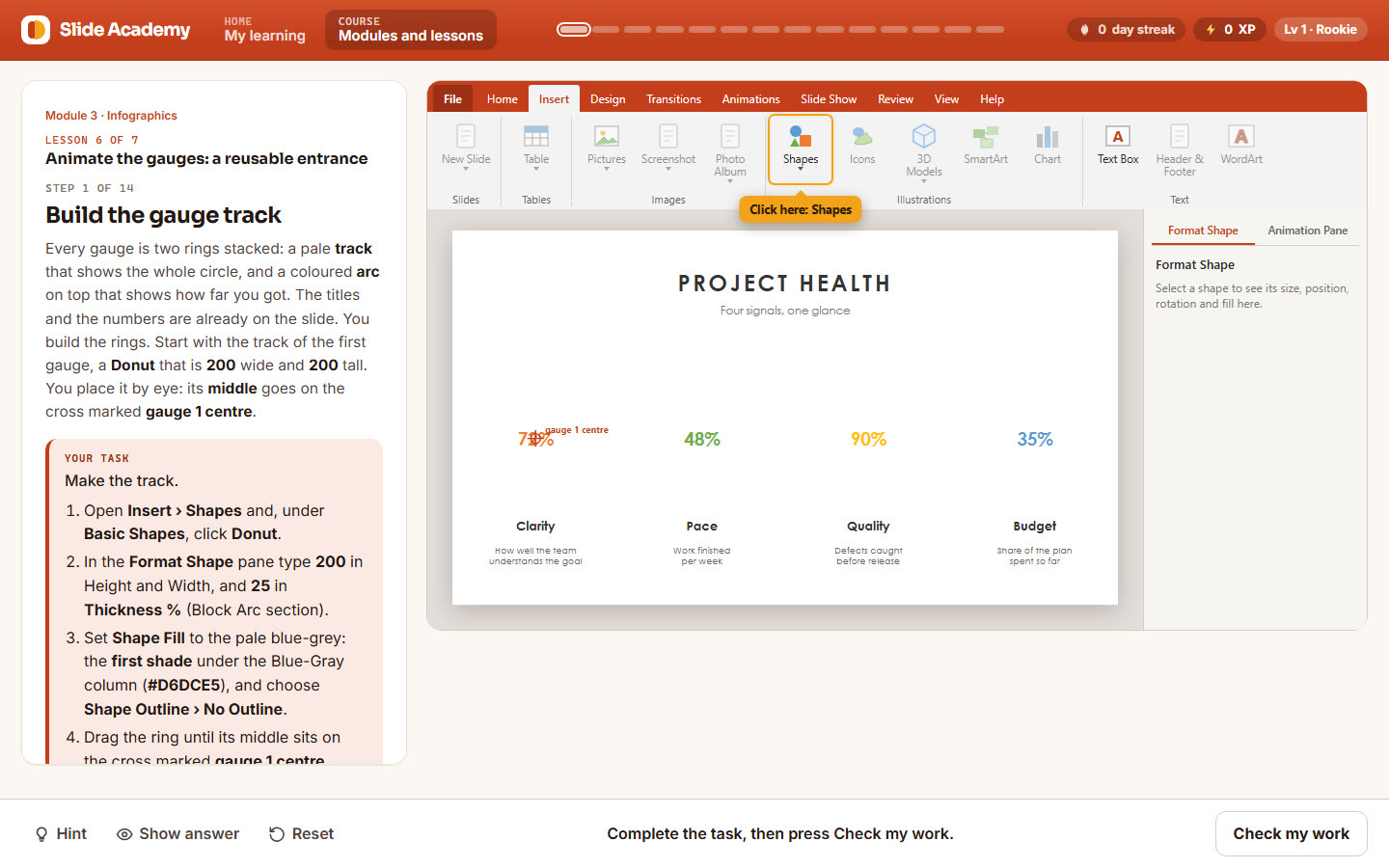
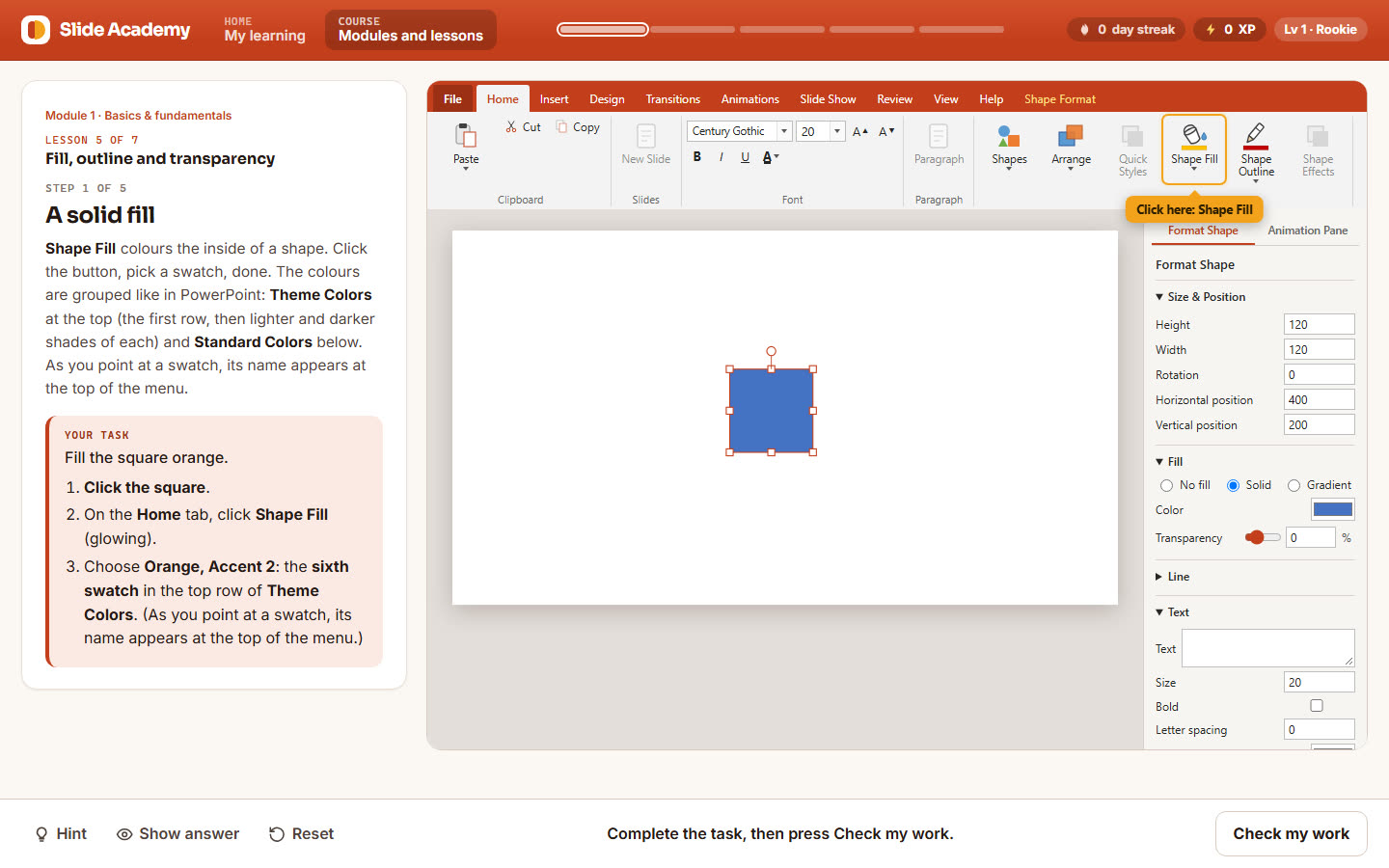
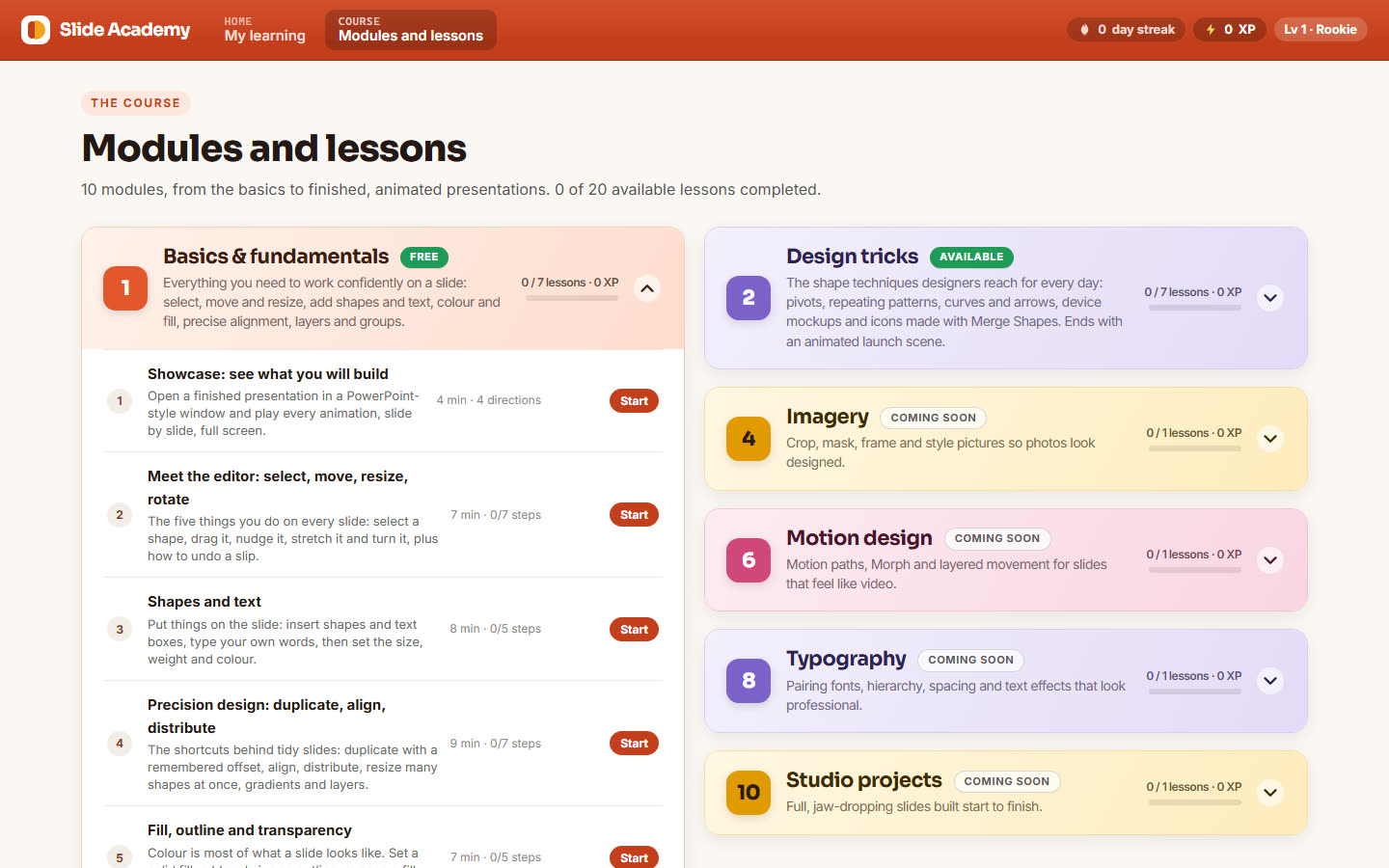
From the first shape to animated infographics.
Three modules are ready today. The rest of the course is on the way.
Basics & fundamentals
- A showcase of what you will build
- Select, move, resize and rotate
- Shapes and text
- Duplicate, align and distribute
- Fill, outline and transparency
- Layers and groups, then a capstone slide
Design tricks
- The fan trick: rotate around a pivot
- Patterns and repetition
- Lines, curves and arrows
- Mockups and frames
- Merge Shapes
- Bring it to life, then an animated launch scene
Infographics
- Bar charts from shapes
- Rings and gauges
- Pictograms
- Timelines and process flows
- Animate a bar chart: grow, stagger, reveal
- Animate the gauges: a reusable entrance
Imagery
Crop, mask, frame and style pictures so photos look designed.
Animation basics
Entrance, emphasis and exit effects, timing, triggers and the Animation Pane.
Motion design
Motion paths, Morph and layered movement for slides that feel like video.
Colour & depth
Palettes, gradients, shadows and glow for slides with real depth.
Typography
Pairing fonts, hierarchy, spacing and text effects that look professional.
Design eye
Composition, contrast and white space: seeing what makes a slide work.
Studio projects
Full, jaw-dropping slides built start to finish.
Good to know
What does it cost?
The first module is free, with no account needed. Full access to the other modules is a monthly subscription through the Microsoft Store, and you can cancel it at any time in your Microsoft account. The price is shown in the Store.
Do I need PowerPoint?
No. You practise in a PowerPoint-style editor built into the app, so nothing else is needed. The tools and techniques are the ones you use in PowerPoint.
Does it work offline?
Yes. The lessons run on your PC. A connection is only used to check your subscription.
What happens to my progress if I stop subscribing?
It stays on your PC. Only the modules that need full access are locked until you subscribe again.
Make your next slide the best one yet.
Start with the free module and build your first slide in minutes.
Get it on the Microsoft Store